If you are at a loss on how to use the PS4 remote and what it is, then you’ve come to the right place.
Take a look at this guide that will help you to better understand the Official PS4 Media Remote that is officially licensed by Sony. Keep in mind that the two AAA batteries needed for this remote are not included with the purchase.
Just what is it?
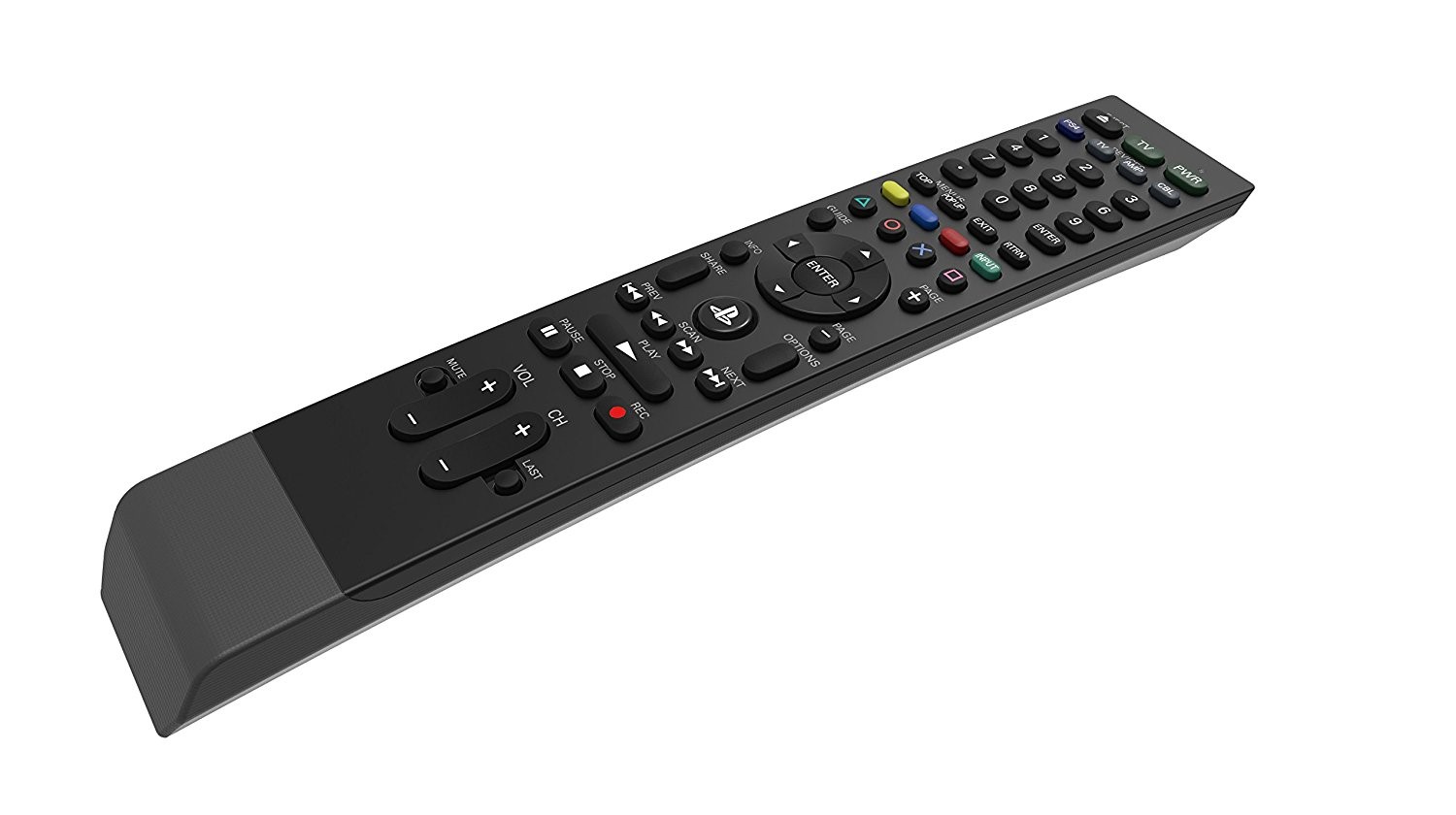

The PS4 Media Remote is a universal remote control that allows the player to control all of their PS4 apps and even their Blu-Ray player. Just like any other universal remote, it also lets you program it to control your TV, cable, and audio receiver. Many encounter problems, but if you follow this step-by-step guide, hopefully those can be quickly eliminated.
How do you program it to your PS4?
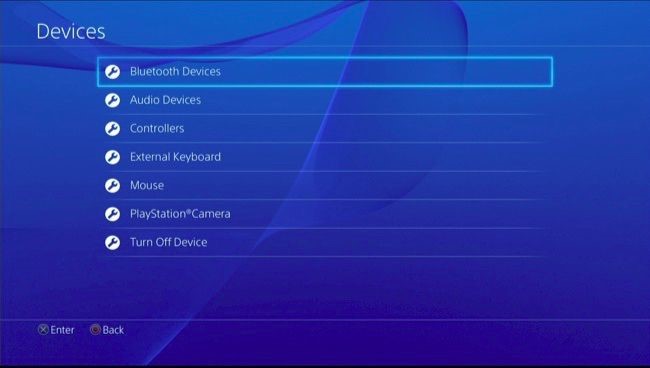
Before actually using the remote, you need to use your old-fashioned controller for your PS4 and go to Devices in Settings followed by Bluetooth Devices. This is how you connect your remote to your console. Then, you simply press the PlayStation Logo Button on the remote. This will prepare it, readying it to connect. To do this, you hold down the PlayStation button plus the Share button (this is located to the left of the PlayStation button.) When you do this, a red light will flash on the remote. At this point, you need to make sure you are near the console. You should then see the remote as a choice for devices. You are now paired with your console. You can control your PS4 with the remote just as if it were a controller.
How to program it to other devices?
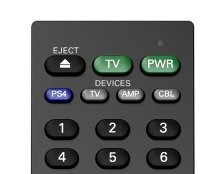
First, turn your TV/cable/audio device on (if the programming fails, just try following these steps with the device off) and keep the remote pointed at the device throughout the process. Then, you want to hold down the green power button plus the button on the remote indicating the device you wish to program (ex. TV). A red light will flash shortly after letting you know it is searching. The device will soon turn off and this means the programming was successful. To wrap it up, press any button on your remote.
What if it didn’t work?
Occasionally, the remote will have trouble finding the code for your device. If this is the case, just turn the device back on. Using the manufacturer’s code (which I will reference below), you can manually program the remote. Simply hold the gray device key, and enter the first code on the list I will provide (it will be 4-digits.) After that, just release the button. With the remote pointed at the device, release the gray key. If this does not work, just try the next code. Some TVs have ten codes, some have only one, depending on rarity and how new they are.
Programming specified buttons
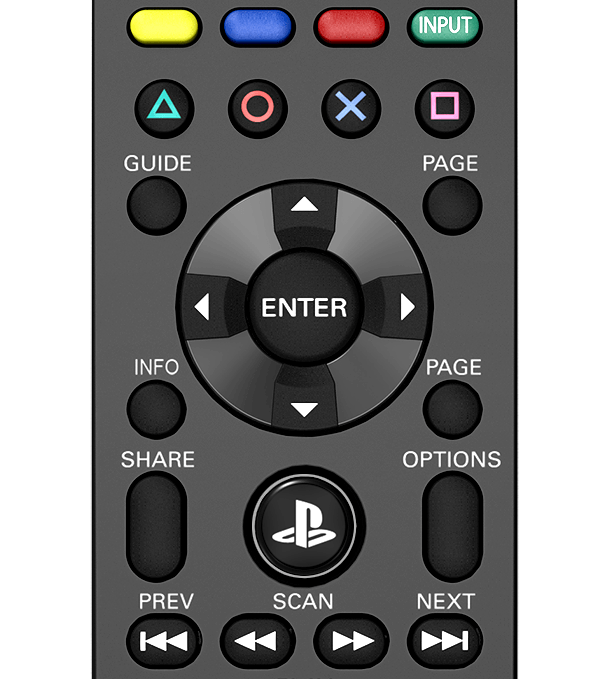
To further eliminate other remotes from your life, the PS4 remote can be programmed to use commands from other remotes. To make it easy, we will call the other remote “teaching remotes” for they are teaching commands to the PS4 remote. There are defaults for the colorful buttons (located above the X, square, circle, and triangle), but you can also customize them by holding down that gray device key depending on which device you are currently using. At the same time, hold down the colored key you wish to program. In a few seconds the red light will flash. Make sure you point the remote at the device and “the teaching remote” directly at the IR window on the front of the PS4 remote, and press the button on “the teaching remote” that you want the colorful buttons to be programmed to. The red light on your PS4 remote will flash three times, this means it was successful.
Volume Punch
Since you may want to turn your TV up or down while using your PS4, it is important that you don’t have to switch back and forth all the time. To fix this problem you need to program the volume punch. To do this, hold down that ever-used gray device key for the device key for, most likely your TV (or sound system) whichever you wish to always control the volume, plus the mute button. The red light will then flash there times. Easy peasy!
You can do the same with channels! Just hold down the gray device key for TV and CBL buttons until the red LED turns on, and then release them. Then, press the gray device key for the device you want to always control the channels. The red light will flash 3 times and boom! Success!
You are done!
Thankfully, once programmed to your device, the PS4 Media Remote will automatically be compatible with Netflix, Hulu, Crunchyroll, and more. Navigate through your PS4, DirecTV, and control your audio devices all through one remote.
Must read! Common Problems:
- The instruction manual includes typos, so look online for further assistance.
- If the programming does not work, try doing so when the device is off.
- The Punch Through buttons do not work for everyone.
- Newer TVs or rather old TVs are harder to program.
- You must provide your own batteries.
Emily Medlock is an avid gamer whose passions not only include video games of all kinds, but anime, music, movies, and reading.