
There’s nothing more annoying to a gamer than popping a disk in your console only to discover that there’s some reading error preventing it from loading or installing. Well, there is something that’s actually worse than that, of course – a scratched disk. If your PS4 is randomly freezing and switching itself off when playing a particular game, the chances are you simply need to clean the disc. In either scenario the faulty variable is dirty media, which when taken to the extreme results in physical damage thus rendering it unusable. With the costs of games riding high and the world’s economic woes weighing down on most people these days, taking care of your PS4 disks isn’t just a good idea – it’s absolutely essential. Here are some handy tips for protecting yours…
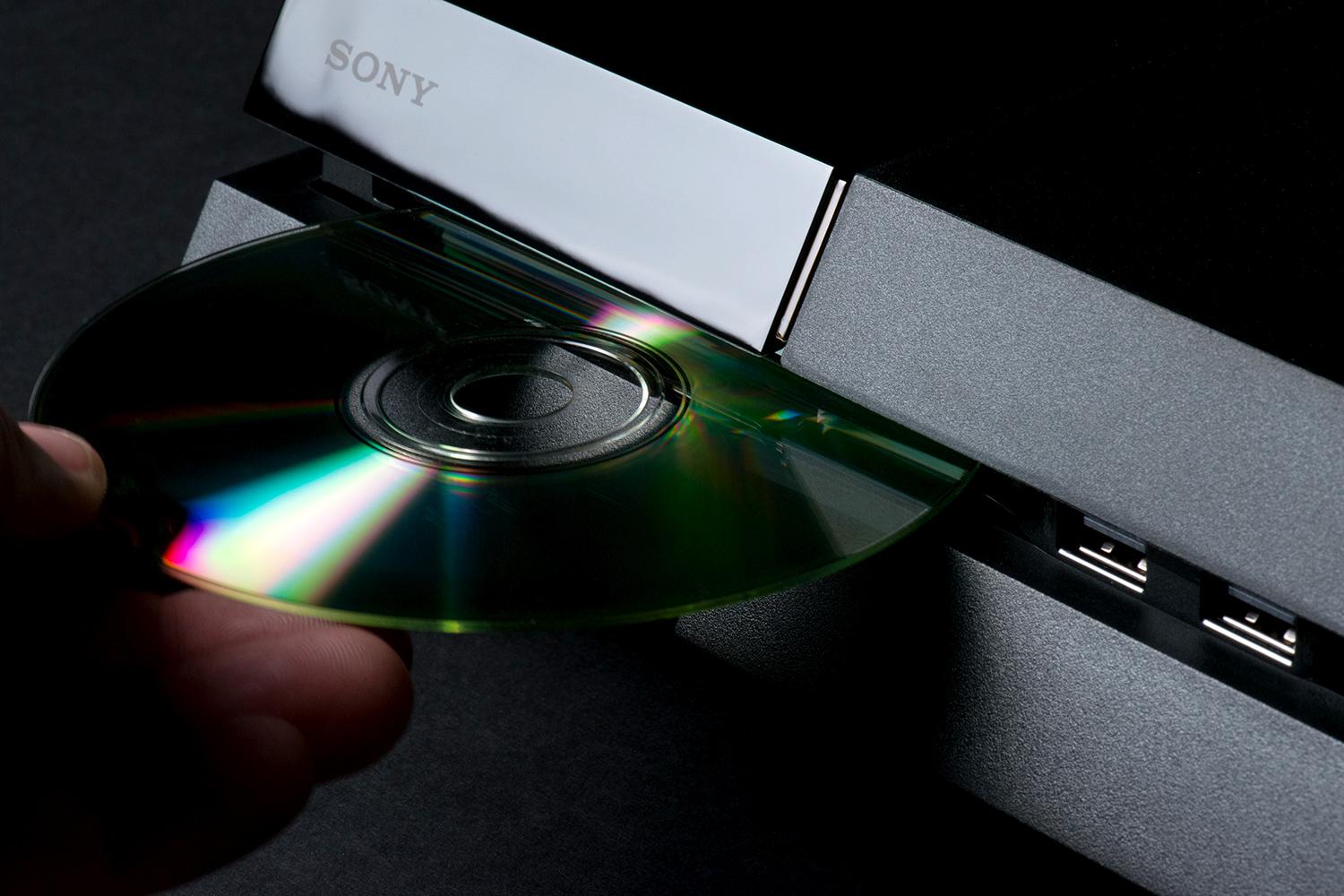
First and foremost one must consider the environment where they store their disks (as well as their console). As they say – prevention is the best cure. So, if you live in a rat-infested hell hole, encountering some dirty or damaged disks is going to be a given at some point in time (and perhaps the least of your worries). So, take this as a sign to either take steps to improve the condition of your game space and/or find a better place to store them.
Similarly, you really shouldn’t just leave game disks lying around freely. Always make it a point to place them back into their protective cases and perhaps onto a shelf where they can be easily accessed yet remain out of the clutches of small children and pets. At the same time, returning a disk to its case means that it won’t accumulate dust on its surface, which is obviously a good thing. In fact, if you don’t have a place to store your media (a small wall shelf or even something specifically designed by an OEM manufacturer) just pick up a few small sealable square plastic containers. Assuming you do go this route just be sure to grab a box that features the appropriate dimensions so that all of your titles will neatly fit into it so as to be easily displayed (resting on their side).
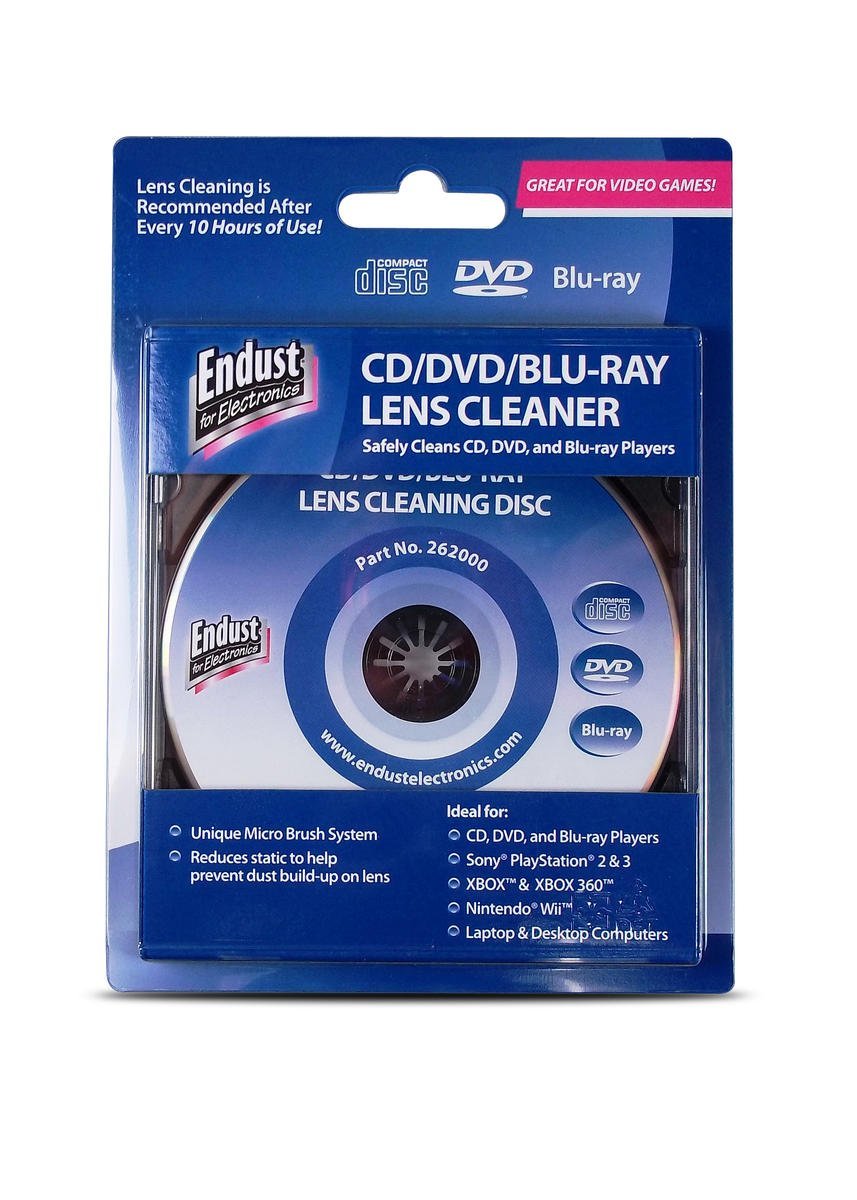
If you actually need to clean a dirty disk, use the following procedure to ensure that no additional damage takes place: Find a very soft, clean cloth (or purchase something specially designed to clean blu-ray disks) and gently rub it across the surface so as to remove any fingerprints or dust. As many have already noted, the PS4 really doesn’t like smudges, so in most cases where you encounter a problem it’s most likely going to be related to the presence of fingerprints.
Last, but not least, always pick up a disk by its edges; this ensures that you aren’t touching the surface where the data actually resides. Similarly, be careful not to scratch the top side of a disk (where the artwork is) as this can often render a game completely unplayable as well.
This post didnt have a specific author and was published by PS4 Home.
4 Comments
i thought they said that using those cd lens cleaners damage the laser eye in the player?
Keeping the disc clean is a must! I had FIFA 14 suddenly start to freeze and the console just switched off.. i thought the console was broken. But after online researching I found it was the disc that needed a clean. Works fine now! Not sure if you need to keep the laser clean, but it makes sense too.
Everytime i play NBA 2K14 my disc gets scratched
I love my rat infested hell hole…:).